The Ultimate Guide to Private Browsing in 2026: Safari on iPhone, iPad, and Google Chrome


In an era where online privacy is more critical than ever, private browsing has become a staple feature for users seeking to protect their digital footprints. Whether you’re shopping for surprises, researching sensitive topics, or simply wanting to keep your browsing history clean, private browsing modes in popular browsers like Safari and Google Chrome offer a layer of discretion.
This comprehensive guide dives deep into what private browsing entails, its benefits, limitations, and step-by-step instructions tailored to specific devices and browsers. By the end, you’ll be equipped with the knowledge to browse privately with confidence on your iPhone, iPad, or via Google services.
Private browsing, often called “incognito mode” in Chrome, prevents your browser from saving certain data like history, cookies, and site data during a session. As of 2026, with advancements in iOS and browser updates, these features have evolved to include better integration with device security, such as Face ID locking for private tabs in Safari.
However, it’s essential to understand that while it enhances local privacy, it doesn’t make you invisible online.
What is Private Browsing?
Private browsing is a browser feature designed to allow users to surf the web without leaving traces on their device. When activated, the browser doesn’t store browsing history, search history, cookies, or temporary files from that session. This means once you close the private window or tab, all data from that session is discarded locally.
The concept originated to help users maintain privacy on shared devices, but it has grown in popularity amid rising concerns over data tracking. In Safari, Apple’s default browser on iOS devices, it’s simply called “Private Browsing.” In Google Chrome, it’s known as “Incognito Mode.” Both function similarly but with nuances based on the ecosystem.
According to experts, private browsing primarily protects against local snooping—think family members or colleagues checking your history—rather than external threats like ISPs or hackers. It’s not a full anonymity tool; your IP address remains visible to websites, and network administrators can still monitor activity.
In 2026, updates have introduced enhancements like Safari’s “Private Browsing 2.0,” which aims to address some tracking vulnerabilities by preventing more advanced fingerprinting techniques. This evolution reflects ongoing efforts by browser developers to combat sophisticated tracking methods.
“Read Also: Boring High-Paying Remote Jobs“
Benefits of Private Browsing
Private browsing offers several advantages that make it a go-to for privacy-conscious users. First and foremost, it keeps your browsing history private on the device itself. This is ideal for shared computers or phones where you don’t want others to see what you’ve been up to.
Another key benefit is avoiding personalized ads based on recent searches. Since cookies aren’t saved, websites can’t use them to tailor content or track you across sessions in the same way. For instance, if you’re researching a gift, private mode prevents those searches from influencing future ads in normal browsing.
On mobile devices, it integrates with other privacy features. In iOS 18 and later (as of 2026), Safari’s private tabs can be locked with Face ID or Touch ID, adding an extra security layer. This ensures that even if someone accesses your phone, they can’t view your private sessions without authentication.
Additionally, private browsing can help troubleshoot website issues by loading pages without cached data or extensions, providing a cleaner experience. It’s also useful for logging into multiple accounts on the same site without conflicts, as sessions don’t persist.
Overall, the mode promotes better digital hygiene by encouraging users to separate sensitive activities from everyday browsing, reducing the risk of data leaks from accumulated history.
“Read Also: Making Money Online: A Proven Roadmap“
Limitations and Myths of Private Browsing
Despite its popularity, private browsing has notable limitations and is surrounded by myths that can lead to false security. One common myth is that it makes you completely anonymous online. In reality, it doesn’t hide your IP address, so websites, ISPs, and employers can still track your activity. Private mode only erases local traces; it doesn’t encrypt traffic or prevent malware.
Another limitation is that downloads and bookmarks created in private mode are still saved to your device. If you download a file, it’s not automatically deleted when you exit the session. Extensions and plugins might also behave differently, potentially logging data unless configured otherwise.
Myth busted: Private browsing doesn’t protect against viruses or phishing. It offers no additional security against malicious sites— that’s what antivirus software and safe browsing habits are for. Studies show users often overestimate its protections, believing it blocks geolocation or targeted ads entirely, which it doesn’t.
In 2026, misconceptions persist, with some thinking it erases all online footprints. Truthfully, for true privacy, combine it with VPNs, ad blockers, and secure connections. Understanding these boundaries ensures you use the feature effectively without over-relying on it.
“Read Also: Best Side Hustles in 2026“
Private Browsing Safari iPhone
Enabling private browsing in Safari on your iPhone is straightforward and has been refined in iOS updates through 2026. This mode is particularly useful for iPhone users who value Apple’s ecosystem privacy features, like Intelligent Tracking Prevention.
To turn it on: Open Safari, tap the Tabs button (two overlapping squares) at the bottom right. Then, tap “Private” at the bottom left to switch to Private Browsing mode. The interface will darken, indicating it’s active. For a quicker method, long-press the Tabs icon and select “New Private Tab.”
Features include no history saving, separate tab groups, and the ability to use a different search engine for private sessions. In Settings > Safari, you can customize by turning off “Also Use in Private Browsing” for certain features or selecting a private search engine like DuckDuckGo.
If you encounter issues, check for restrictions in Settings > Screen Time or VPN settings, as they can disable private mode. As of 2026, iOS 19 enhances this with better integration for locked private tabs, requiring biometric authentication to access.
For visual guidance, here’s a screenshot illustrating the process:
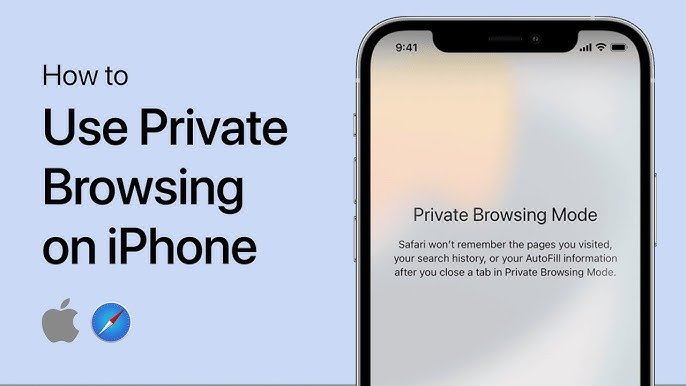
This ensures your iPhone browsing remains discreet, especially on the go.
Private Browsing Safari iPad
On the iPad, Safari’s private browsing leverages the larger screen for a more immersive experience while maintaining the same privacy protections as on iPhone. With iPadOS 19 in 2026, features like sidebar navigation make it even easier.
To enable: Open Safari, tap the Sidebar button (three lines) at the top left, then select “Private” from the Tab Groups. Alternatively, tap the Tabs icon, then “Private” to switch modes. The screen will turn dark, and tabs will be isolated from regular browsing.
Key features mirror iPhone’s, including no cookie persistence and customizable search engines. Go to Settings > Safari to adjust private browsing settings, such as disabling extensions or choosing a dedicated search provider.
For multitasking users, private tabs can run alongside regular ones without interference. If private mode isn’t appearing, summon the sidebar first, as iPadOS requires this step in some versions. 2026 updates include enhanced fingerprinting resistance, making it harder for sites to track you uniquely.
Visualize the setup with this screenshot:
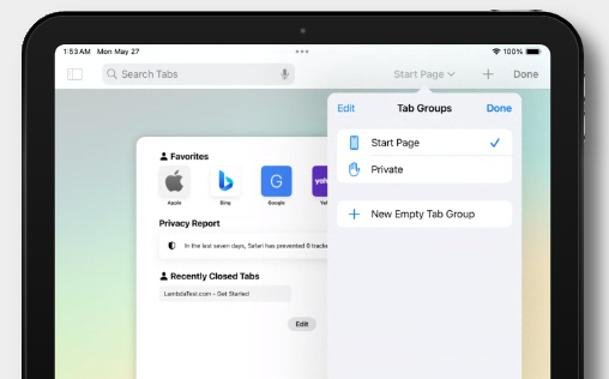
This mode is perfect for iPad users handling sensitive work or personal research on a shared device.
Private Browsing on iPhone
Private browsing on iPhone extends beyond Safari to include third-party browsers, but Safari remains the most integrated. For general iPhone users in 2026, enabling it ensures seamless privacy across apps.
Steps: In Safari, as mentioned, use the Tabs button to toggle Private. To exit, tap Tabs again and select your regular Tab Group. Tips include clearing any existing data via Settings > Safari > Clear History and Website Data for a fresh start.
For enhanced privacy, combine with iPhone’s Focus modes or VPN. Avoid logging into accounts in private mode to prevent session persistence. If locked private browsing is enabled, disable it in Settings > Safari > Require Face ID to Unlock Private Browsing.
Common tips: Use private mode for public Wi-Fi to minimize risks, and remember it doesn’t block ads—install an ad blocker extension for that. In 2026, iOS emphasizes user education on privacy, with prompts explaining limitations upon activation.
This approach keeps your iPhone’s browsing history spotless and secure.
“Read Also: Passive Income with Digital Products“
Private Browsing Google
Google’s private browsing, branded as Incognito Mode in Chrome, is available on mobile and desktop, offering cross-platform consistency. In 2026, Chrome has updated its privacy sandbox to reduce third-party tracking in incognito.
On mobile (Android/iOS): Open Chrome, tap the three dots > New Incognito Tab. On desktop: Click the three dots > New Incognito Window, or use Ctrl+Shift+N (Windows) or Cmd+Shift+N (Mac). The dark theme and spy icon confirm it’s active.
Features: No history or cookies saved, but signed-in Google accounts may still track across devices unless you sign out. Lock incognito tabs in settings for added security on mobile.
Limitations align with general private browsing: It doesn’t hide from networks. For better privacy, use Chrome’s site settings to block trackers. 2026 enhancements include better warnings about what incognito doesn’t protect.
Here’s a mobile screenshot for reference:

Google’s mode is versatile for users in the Android ecosystem or those preferring Chrome on iOS.
Tips for Enhanced Privacy While Using Private Browsing
To maximize private browsing, layer it with other tools. Use a VPN to mask your IP, enabling true anonymity. Install browser extensions like uBlock Origin for ad blocking, even in private mode.
Regularly clear cached data outside private sessions. On iPhone/iPad, enable “Prevent Cross-Site Tracking” in Safari settings. For Google, opt out of personalized ads via your account settings.
Avoid downloading files in private mode if you want them temporary—use secure file managers instead. Finally, educate yourself on browser updates; 2026 brings more AI-driven privacy features in both Safari and Chrome.
Conclusion: Private Browsing in 2026
Private browsing remains a powerful tool in 2026 for maintaining discretion in your online activities, whether on Safari for iPhone and iPad or Google Chrome. By understanding its mechanics, benefits, and limitations, you can use it effectively without falling for common myths. Remember, it’s a starting point—combine it with VPNs and mindful habits for comprehensive privacy. Stay informed as browsers evolve, and browse safely.